

Walkthrough: reviewing activity.
What activity shows
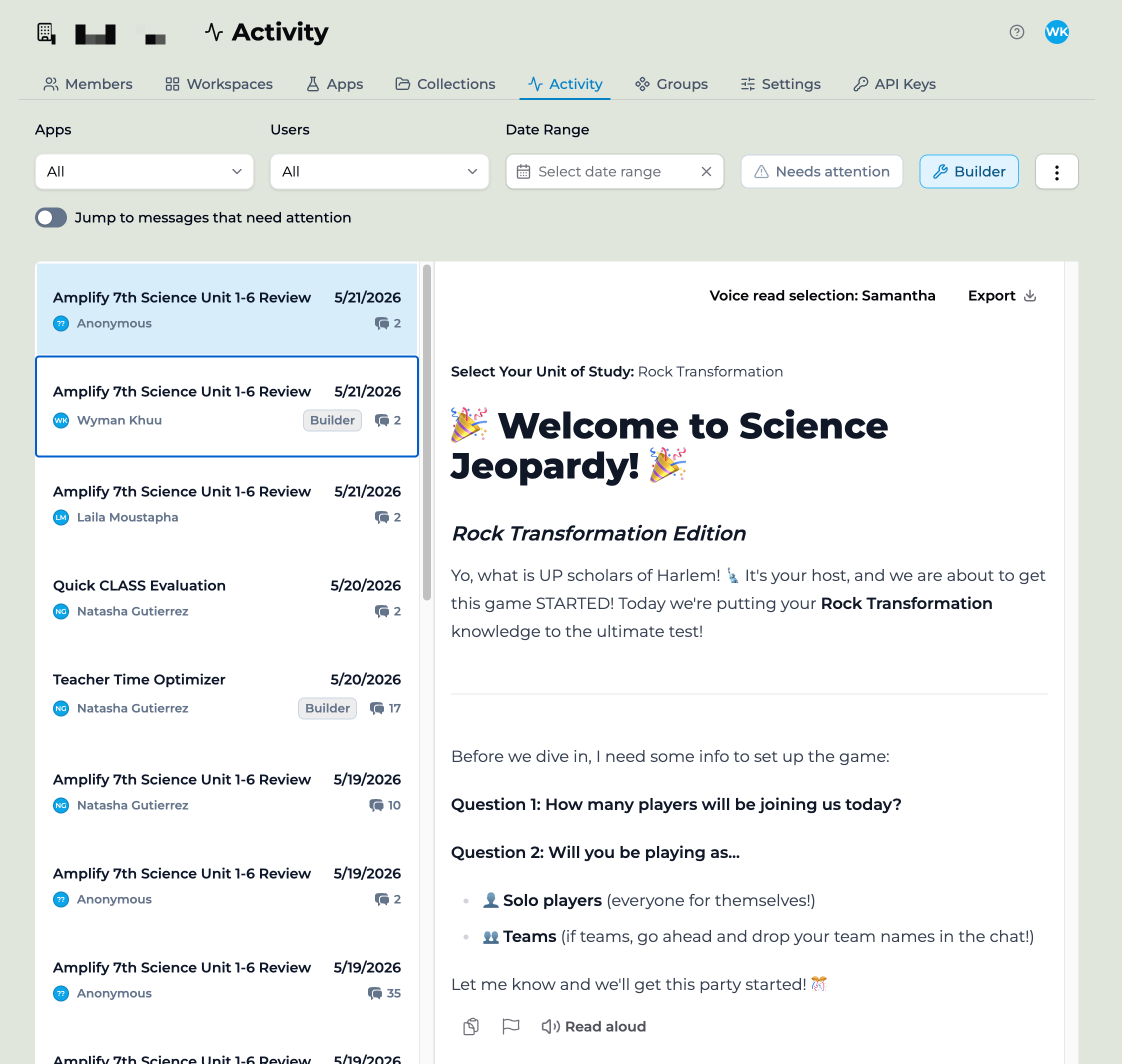
The Activity view: sessions on the left, the full conversation transcript on the right, with filters for Apps, Users, Date Range, Needs attention, and Builder across the top.
- The app used
- The member who used it
- The date of the conversation
- Message count
- Any flags raised during the session
Tracking and filtering activity
The controls across the top of the Activity view let you narrow what you’re tracking: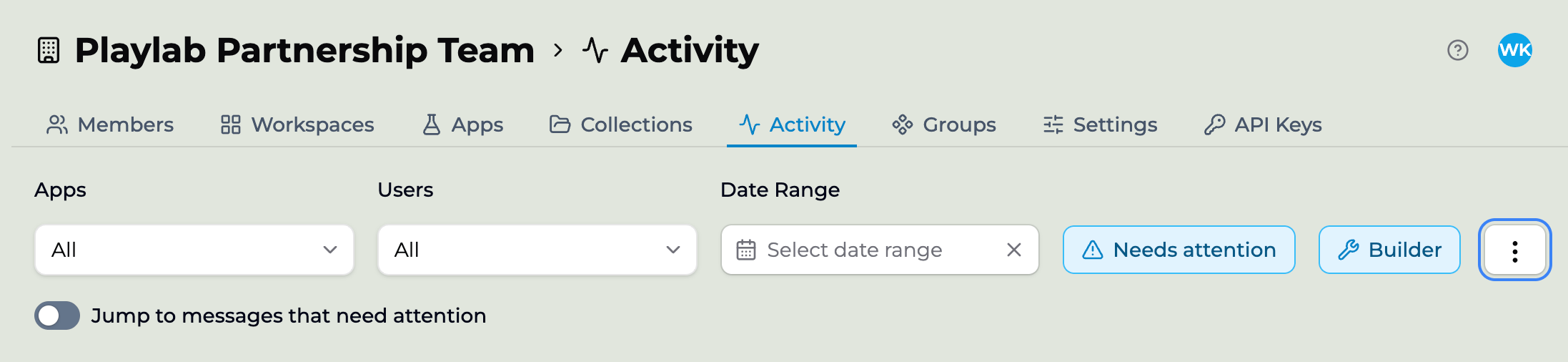
The Activity view filter bar: Apps, Users, and Date Range, plus the Needs attention and Builder toggles, the ⋮ overflow menu, and the Jump to messages that need attention switch.
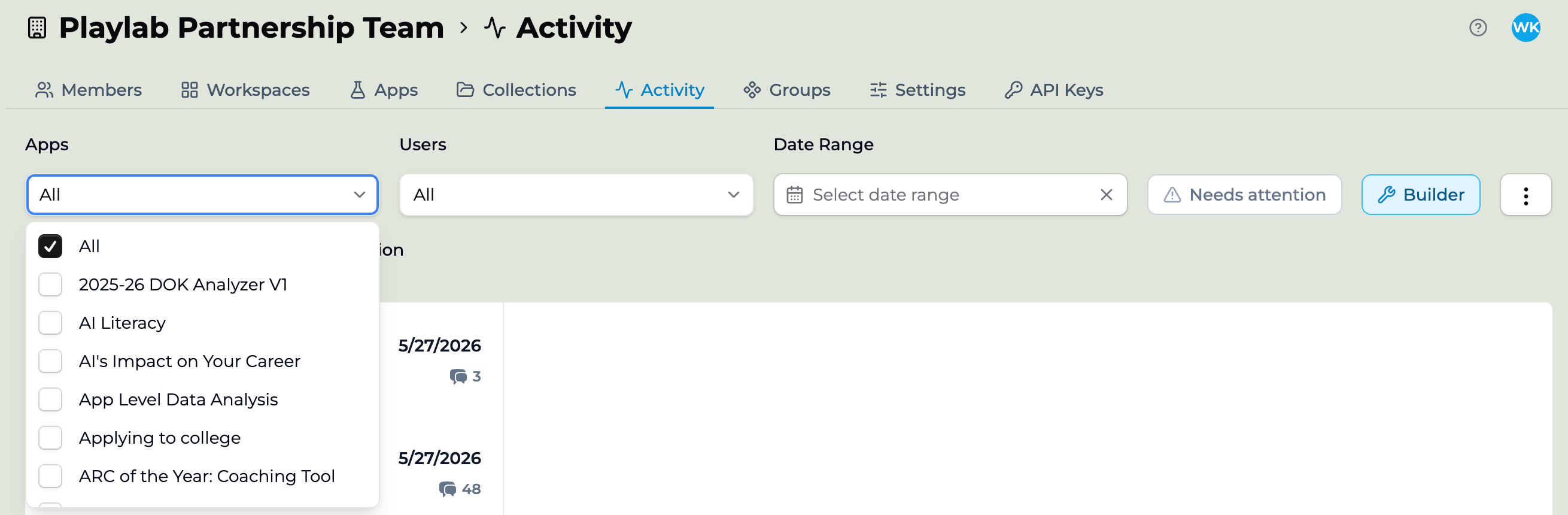
The Apps filter open: choose All to see every app, or pick a single app to see only its sessions.
- Export activity data (JSON) — download the currently filtered activity as a JSON file.
- Show community activity — include activity from community use of the app alongside your org’s own.
Best practices
A few things teachers have asked about and that have worked: Set a weekly review cadence. Open the Activity view every Friday and scan for sessions that stalled or members who have not engaged. Five minutes catches most issues. Use date filtering to avoid being overwhelmed. The all-time view is rarely useful for monitoring. Last 7 days or last 14 days is the right window. Pay attention to flags first. Filter by flag status when you open the view. Anything flagged is worth a quick read. Open conversations that look unusual. A very long session for a brief assignment, or a very short session for a complex assignment, are signals worth investigating.Key points
- Activity view shows every app session inside a workspace
- Filter by app, user, date, Needs attention, or Builder activity
- Export filtered activity as JSON
FAQ
Can I export activity data?
Can I export activity data?
Yes. From the ⋮ menu, choose Export activity data (JSON) to download the currently filtered activity as a JSON file. Org Owners can also export org-wide Insights as CSVs — see Exporting activity data.
What is the difference between this and org-level monitoring?
What is the difference between this and org-level monitoring?
Workspace activity is scoped to one class. Org-level monitoring (admins only) sees activity across every workspace in the org and surfaces flags from across the network. See Centralized org monitoring.
How long is activity history retained?
How long is activity history retained?
For the lifetime of the workspace. Archived workspaces retain history. Deleted workspaces’ activity remains visible to org admins for compliance and review.
Can students see other members' activity?
Can students see other members' activity?
No. Members see their own conversations and their own apps. Cross-member visibility is a manager and admin role.
Can I get notifications when there's new activity?
Can I get notifications when there's new activity?
Not as push notifications. The activity view updates in real time when you have it open. Email digests are on the roadmap.
Can I exclude specific apps from the activity view?
Can I exclude specific apps from the activity view?
Use the App filter at the top of the view to focus on the apps you care about. There’s no permanent exclude option today.
Last updated: 06-26-2026 Contact us at support@playlab.ai